

Archives: Downloads
Proposal Document is here.
Commercials
- Project Cost
- Total Cost
- Total Ball Park Effort for Designing and Development will be 135 hours
- Our hourly rate is USD 45/hour, but we won’t charge hourly as the cost will be huge = 135 hours x USD 45/hour = USD 6000
- Final Discounted Cost = USD 2999 (we will reduce our hourly cost to USD 30/hour for this project and offer a USD 900 additional discount.
- Delivery Schedule
- When can we Commence Work
- I need to reserve the development time of two of my team members for a fortnight in advance so that we can start this project on June 20th. It will take two months to complete as we handle multiple projects in parallel.
- Payment Terms & Milestones
- We will divide the project into two milestones and take advance payments before commencing each milestone. We will initially do work locally, and once that milestone is completed, we will upload it to your setup for your review. This approach will safeguard both of our interests. You pay and get your work on your site for review.
- Milestones
| Milestone | Amount (in USD) | Estimated Delivery Date |
| Advance Payment for Milestone 1Payment Link for Milestone 1 | 1800 | 23rd June 2025 |
| Milestone 1FIGMA MOCKUPS | 27th June 2025 *tentative | |
| Milestone 1HTML DESIGNDesign & Development for Home Page | 30th July 2025 | |
| Advance Payment for Milestone 2Payment Link for Milestone 2 | 1199 | 23rd July 2025 |
| Milestone 2Dynamic Page Template for Vehicle Detail Page & All Other PagesFull Testing of the website. | 29th August |
Note:
- The fee does not involve any third-party costs, such as domain registration, hosting, theme purchases, or plugin purchases, which are to be borne by the Client.
- The dates mentioned above are subject to advance payment and any dependencies that a particular milestone has in terms of clarifications from the customer.
Proposal Document is here.
Commercials
- Project Cost
- Total Cost
- Total Ball Park Effort for Designing and Development will be 135 hours
- Our hourly rate is USD 45/hour, but we won’t charge hourly as the cost will be huge = 135 hours x USD 45/hour = USD 6000
- Final Discounted Cost = USD 2999 (we will reduce our hourly cost to USD 30/hour for this project and offer a USD 900 additional discount.
- Delivery Schedule
- When can we Commence Work
- I need to reserve the development time of two of my team members for a fortnight in advance so that we can start this project on June 20th. It will take two months to complete as we handle multiple projects in parallel.
- Payment Terms & Milestones
- We will divide the project into two milestones and take advance payments before commencing each milestone. We will initially do work locally, and once that milestone is completed, we will upload it to your setup for your review. This approach will safeguard both of our interests. You pay and get your work on your site for review.
- Milestones
| Milestone | Amount (in USD) | Estimated Delivery Date |
| Advance Payment for Milestone 1Payment Link for Milestone 1 | 1800 | 23rd June 2025 |
| Milestone 1FIGMA MOCKUPS | 27th June 2025 *tentative | |
| Milestone 1HTML DESIGNDesign & Development for Home Page | 30th July 2025 | |
| Advance Payment for Milestone 2Payment Link for Milestone 2 | 1199 | 23rd July 2025 |
| Milestone 2Dynamic Page Template for Vehicle Detail Page & All Other PagesFull Testing of the website. | 29th August |
Note:
- The fee does not involve any third-party costs, such as domain registration, hosting, theme purchases, or plugin purchases, which are to be borne by the Client.
- The dates mentioned above are subject to advance payment and any dependencies that a particular milestone has in terms of clarifications from the customer.
Customer Requirement
- Apply blur or change background for all car images
- Integrate VIN API to auto-fetch car details during product submission
Design & Development
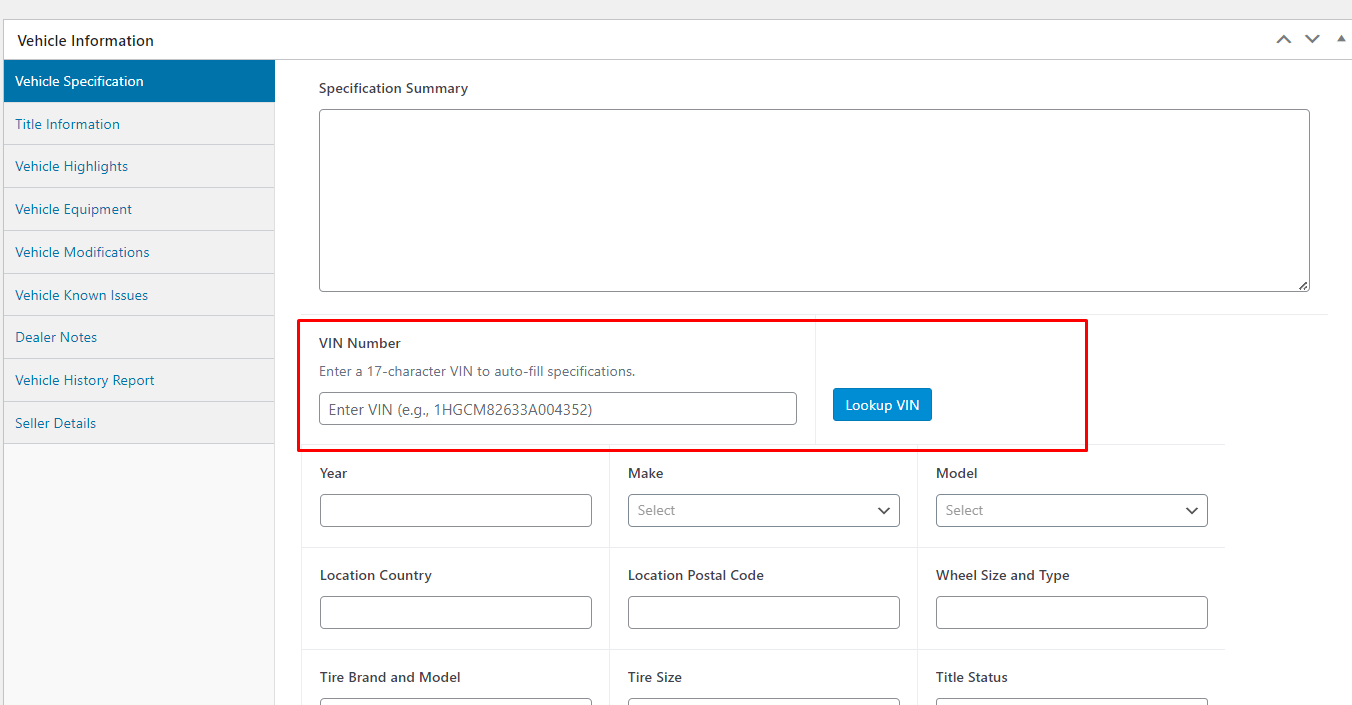
- Implement VIN Lookup Feature Using VIN Decoder API
- Workflow Description
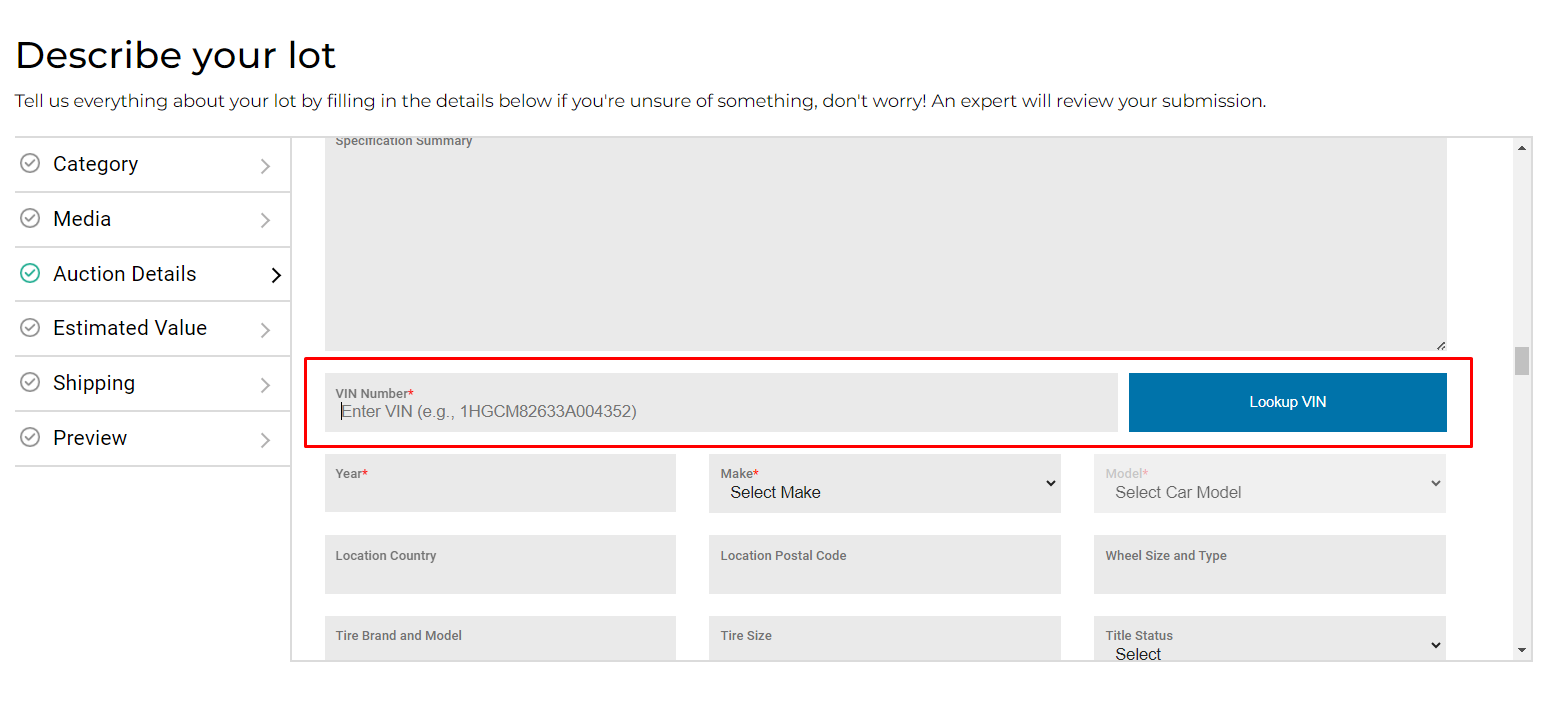
- Integrate a VIN Decoder API into both Admin backend and Seller dashboard car submission forms to automatically fetch and populate vehicle data using the VIN number.
- Used API
- Admin Workflow
- Admin visits the product add/edit page.
- Enter VIN number.
- Click “Lookup VIN”.
- API is called → Fields are auto-filled.
- Errors (if any) are shown.
- Admin reviews and submits the car listing.
- Seller Workflow
- Seller accesses vehicle listing form in dashboard.
- Enter VIN number.
- Click “Lookup VIN”.
- Data is fetched and populated.
- Manual edits for non-returned fields.
- Listing is submitted for review.
- Mockups
- Admin edit product screen
- Workflow Description
- Seller vehicle listing form screen
- Estimated Effort for this feature = 20 hours
- Implement Automatic Car Image Background Removal for Admin
- Workflow Description
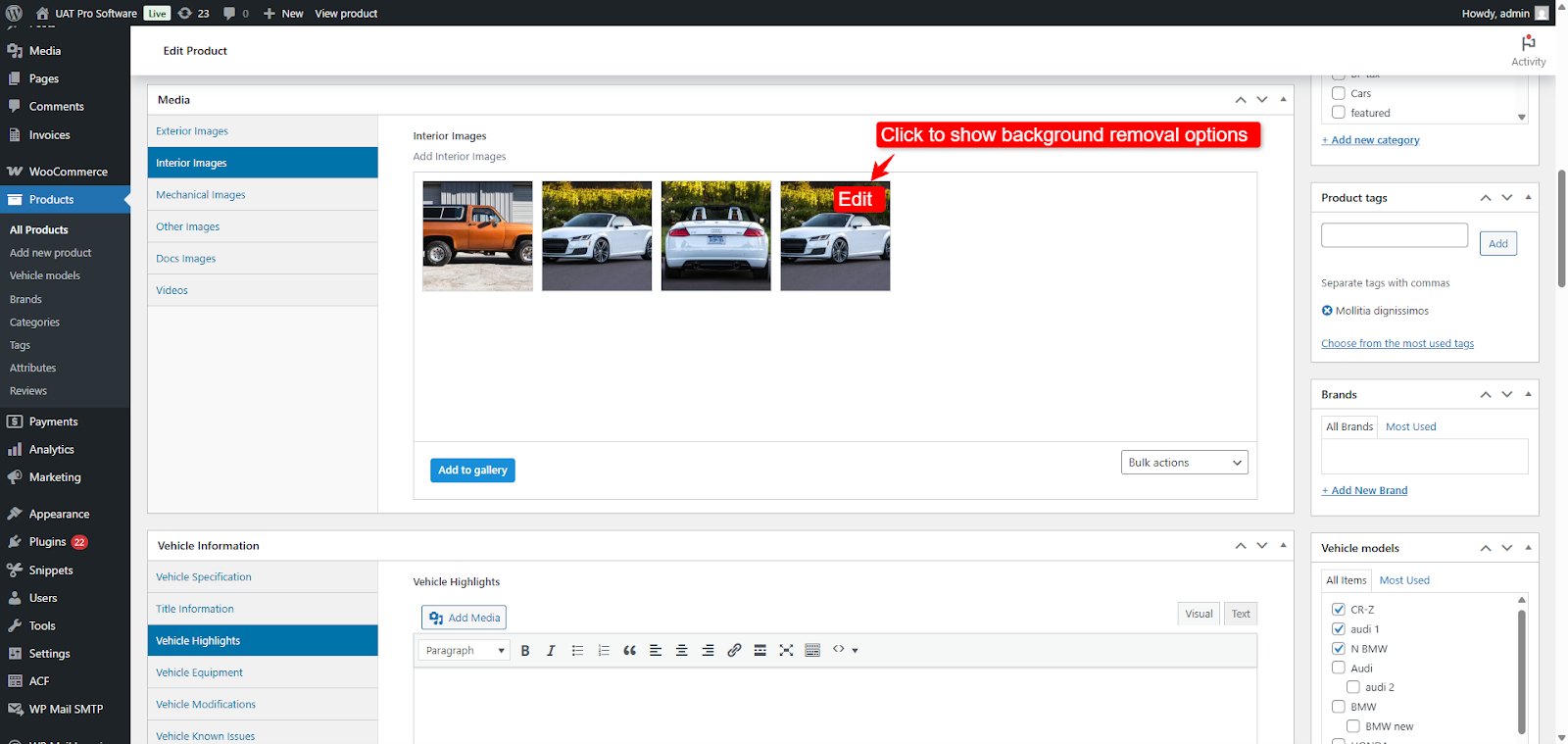
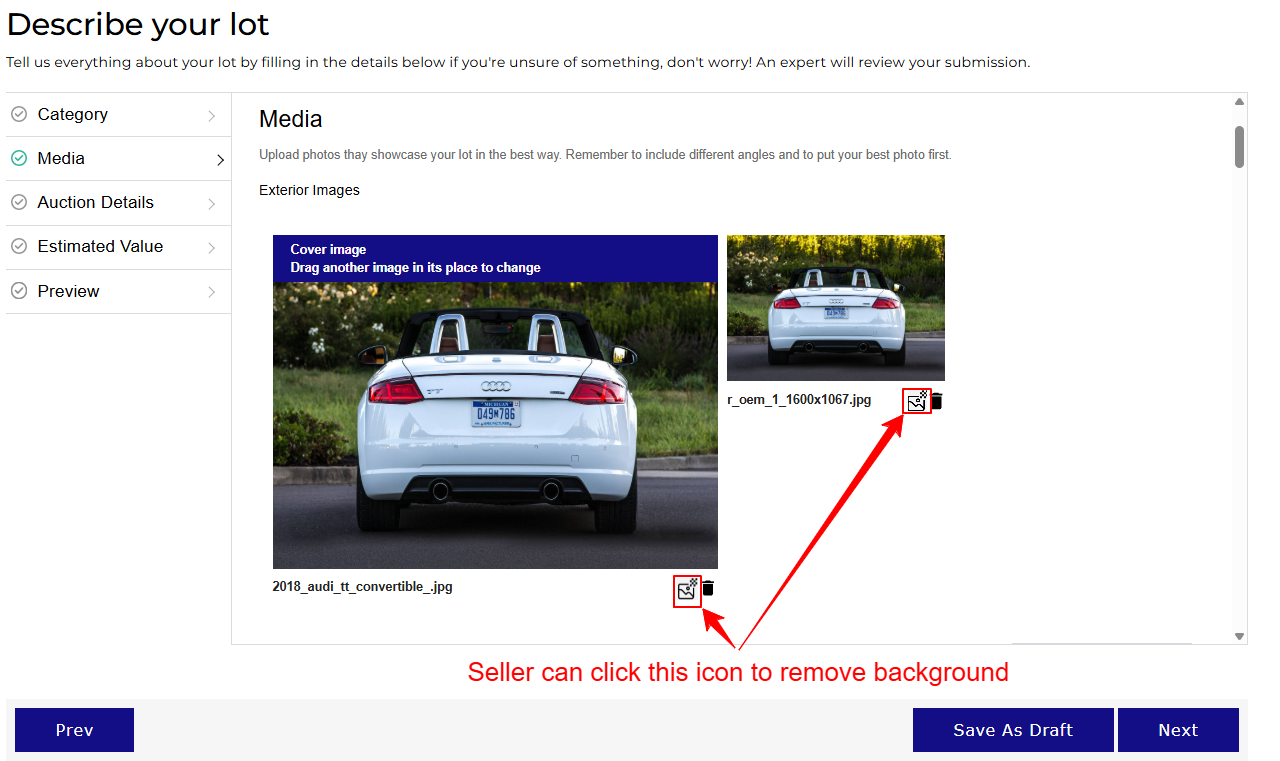
- Admin clicks “Edit” on gallery images to open a popup, removes the background via API, and chooses whether to show the original or processed image on the product frontend.
- Used API
- Pixelcut.ai API – Use paid plan for quality results and reliability in production.
- Seller – Add Lot Page
- Each uploaded image shows a “Remove Background” icon.
- When clicked, the image background is removed using the API and saved in the same gallery slot.
- After submission, the admin can manage these images using the same editing flow—whether the lot was submitted by a seller or admin.
- Admin – Product add/edit page
- For each ACF gallery image, an Edit button appears.
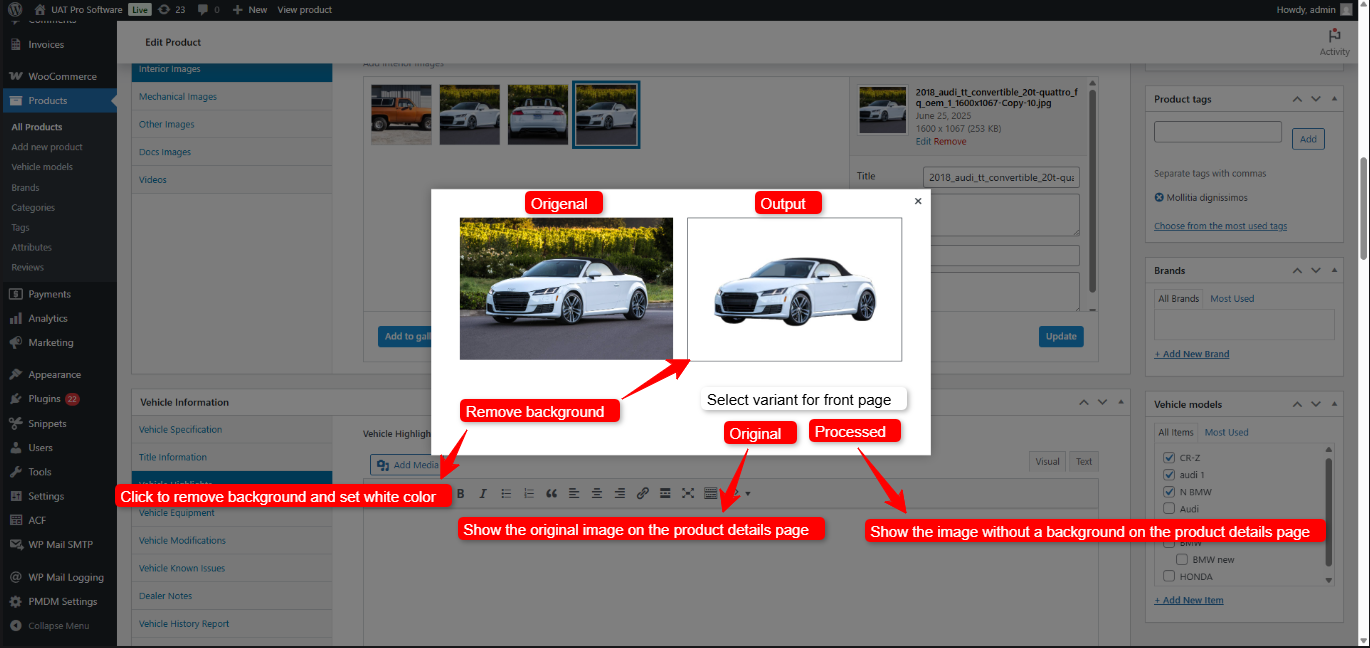
- On click, a custom modal opens with:
- Left: Original image
- Right: Processed image (if exists)
- Admin Modal Actions
- Remove Background
- Calls Remove.bg API.
- Background removed and replaced with blurry white or any image.
- Image saved as new attachment (linked to original).
- Show Original
- Display the original image (with background) for the product detail page.
- Show Without Background
- Display image in the same gallery slot with the processed version.
- Display processed version for the product detail page.
- Remove Background
- Processing Behavior
- Workflow Description
- The frontend (product detail page) displays images from the ACF gallery.
- Admin selection determines whether the original or processed image is displayed on the product detail page.
- The swap is seamless and retains gallery order.
- On save, changes are reflected even after reload.
- Mockups
- Admin – Image Action button
- Admin – Edit action popup design
- Seller – add lot screen
- Estimated Effort = 35 hours
Effort
- Estimated Effort = 55 hours
Commercials
- Project Cost
- Total Cost
- Total Ball Park Effort for Designing and Development will be 55 hours
- Total cost = USD 45/hour x 55 hours = USD 2475
- Final Discounted Cost = USD 1999
- Please note that the above cost does not include the cost of our car auction software. You should purchase it first, and we will do all the work on top of it.
- Payment Links
- Payment link to buy ALL ACCESS LIFETIME LICENSE of CAR AUCTION SOFTWARE
- Payment Link for this proposal.
- Delivery Schedule
- When can we Commence Work
- I need to reserve the development time for my team members for a fortnight in advance so that we can start this project on 14th July.
- Milestones
| Milestone | Amount (in USD) | Estimated Delivery Date |
| Advance Payment for Milestone 1 | 1999 | 7th July 2025 |
| Milestone 1Integration VIN & Image Whitebackground | 31st July 2025 |